Frequently Asked Questions
How do ShowTextQRs work?
- ShowTextQR uses a proprietary method of creating URLs that show text when encoded into QR codes. For example, given the URL HTTP://WWW.EXAMPLE.COM and the word "MENU", we create a new URL
HTTPS://EXAMPLE.COM#CDHQCAPHXOVANMDAWSBG.FS:MYBHMYBHM$OF6UVZWCUGG4G3+JDXIM9JIZ9HD4TZ/F-7UOMGD.+MHLDM+$7UK+IU+*-.FRMXMC.GYALLERUUDVPDADAWAPTCVMGFZINA - The seemingly random characters starting with '#' after the original URL cause the word 'MENU' to appear in the QR code we create. When the URL is encoded into QR code, the word appears.
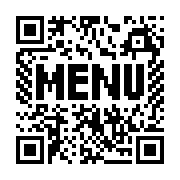
- You use the ShowTextQR in your ad, poster, flyer, etc., just as you would a plain QR code.
- When someone scans the QR with their smartphone, the QR is decoded into the URL.
- When they click the URL everything after the '#' is ignored and they visit your site at the page you specified.
- Note that if you take a ShowTextQR URL and run it through a QR-generating tool, you might not get the QR code you expect. We control the QR creation process through proprietary methods that 'plain' QR tools don't use. ShowTextQR QR codes are valid and in full compliance with international standard ISO/IEC 18004.
Is there limit on the length of the URLs?
Yes, but it's pretty long. 148 characters for one-line (37 cells) QR codes, and 930 characters for two-line (85 cells). URLs that are too long would run into the part of the QR code used by the text you have entered. The resulting ShowTextQR would not correctly show the text you want.
Can I use a URL-shortening service?
Yes. There are two situations where you will need to do this, and other cases where you may prefer to.
The first case where you need to use a shortened URL is when your web page doesn't work with an uppercase URL. For example, the Wikipedia page: https://en.wikipedia.org/wiki/Oak doesn't work in uppercase: HTTPS://EN.WIKIPEDIA.ORG/WIKI/OAK. Most websites are set up to work with either uppercase or lowercase URLs, but not all.
The second case where you need to use a shortened URL is when the URL of your page is too long.
You may prefer a shortened URL for other reasons. A shortened URL may allow you to come back later and change the page that the shortened URL refers to. If your site changes, or you want the ShowTextQR code to send visitors to a different page, this is very handy. Also it may be helpful to gather traffic stats for the shortened URL, so you know how many visitors the ShowTextQR QR code is sending.
You can create a shorter URL on your own site, or get one from a shortening service.
Create a Shorter URL on Your Own Site
Talk to your web developer or site administrator about creating a short URL with a redirect or alias to the long URL. It's easy.
Using a URL Shortening Service
This is also easy. You must use a URL shortening service that allows you to customize the shortened URL with all UPPERCASE letters. Bit.ly and Tinyurl.com are widely used shortening services. There are many others.
On the shortening site, enter the original URL of your page. (Not one that you changed to uppercase.) Also enter a customized URL that is still pretty short and uses UPPERCASE. You can enter a customized shortened URL that is meaningful (like 'DROUGHT' for the NOAA example above). Then click the 'shorten' button.
Copy the shortened version into the 'Destination URL' field in the 'Make Your Own' form.
Now you are good to go. Finish the form and get your ShowTextQR.
What About the '404 Errors' Warning?
Before we create your ShowTextQR, we sanity-check the URL that you provide by contacting that page. If we get any bad result, like a 404 'page not found' error, we issue a warning instead of making a ShowTextQR QR code.
This is for your protection, so we don't provide you with a QR code that does not work.
You can override the protection by checking the 'Ignore 404 errors' checkbox, just below the Destination URL field on the form. Proceed at your own risk.
- 0 - The entire website could not be located.
- 301 and similar - your URL was redirected to a different URL. There are various reasons for this. One is that your URL used HTTP but the site redirected to HTTPS. This may be OK, but you may want to use the 'right' URL that does not get redirected.
- 404 and similar - Page not found. One reason for this is that you want a QR code for a page that is planned but not yet publicly available.
How long can my message be?
Whatever fits. A simulated QR code showing your message is displayed as you type in the form. Some characters are wider than others, so we can't give a specific number.
Can you show numbers?
Yes. Any combination of ABCDEFGHIJKLMNOPQRSTUVWXYZ0123456789$%*+-.:=()'"!,;? can be used. Lowercase letters are not allowed.
Why must the URL be UPPERCASE?
This is due to the technical process used to build ShowTextQR QR codes. It's a long story. Note: It is possible that your website is configured to treat uppercase URLs differently. For example, the URL HTTP://EXAMPLE.COM/some_page might work but HTTP://EXAMPLE.COM/SOME_PAGE would not work. To prevent problems, verify that the uppercase URL works before you create your ShowTextQR with it. If this is a problem, use an alias or redirect on your own site, or use a URL shortening service to generate an uppercase URL. See Can I use a URL-shortening service? for details.
Why can't I use a "?" in the URL?
It's a long, technical story. Your URL can't be encoded into a QR code with a "?". You can use the letters A-Z, the digits 0-9, a space, and the symbols ($ % * + - . / :)
If you need a "?' in your URL, use an alias or redirect on your own site, or a URL-shortening service, to get a clean short link with no "?" in it. See Can I use a URL-shortening service? for details.
Can I use a FaceBook URL?
Facebook URLs use the '?' character, which isn't allowed. However, you could use a URL shortening service.
Are there any ongoing costs for my ShowTextQR QR code?
No. There are no additional charges after the purchase. Your ShowTextQR QR code is all yours. We do not control or manage it. Your ShowTextQR QR code points to your page, not ours.
How do I know my ShowTextQR really works?
You can test your ShowTextQR easily with your smartphone camera or QR scanner app. Scan your ShowTextQR, and the app will display the web page URL you entered when you created the ShowTextQR (along with a lot of random-looking text starting with '#'). Click the 'Open Browser' button and you will be taken to the page.
How do I track the response to my ShowTextQR code?
Here are some ways to track visits to your site triggered by ShowTextQR QR codes:
- Create your ShowTextQR with a URL that points to a special page on your site, then track the visits to that page.
- Some URL shortening services provide traffic stats as part of the free service.
Can I change the page the visitor sees?
Your ShowTextQR will always decode to the same URL, but there are some ways to change what page the visitor sees. For example:
- Use an alias or redirect on your own site to change the page the visitor sees. This approach would redirect everyone visiting the page, not just people scanning the ShowTextQR.
- If you use a URL shortening service, the service may allow you to change the URL the shortened URL points to.
Of course, you can always change your page content however you want.
Tell me more about the zip file.
Zip file usage notes
Downloading: Dealing with zip files on mobile devices can be painful. It will be easier to download and use the zip file on a desktop device or laptop. On iPads or iPhones, we suggest using the Safari browser.
Note: You may be able to view the contents of the zip file without actually extracting them. But to do anything useful, you will need to extract them from the zip file. Your system knows how to do this.
Extract the files before opening the HTML file. The HTML file expects to be opened in the same directory as the other files.
Contents of the zip file
We provide multiple formats to give you flexibility in using your ShowTextQR. The PDF version can be used in any printed material. The SVG version can be embedded in a web page. PDFs and SVGs can be scaled up or down. Be careful not to lose sharpness if you downscale.
- demo.html A simple display of the different formats of your ShowTextQR.
- Several PNG images in different sizes
- An SVG version which can be scaled.
- An PDF version which can be scaled.
- A README.txt file with information about your ShowTextQR QR code.
PNG format sizes
We provide several ready-made sizes of the PNG image (plus a full-size PDF and a scalable SVG) so you don't have to resize anything yourself. Resizing a QR code image -- even slightly -- can blur the crisp edges between black and white just enough to make it harder for a smartphone to scan. Pick whichever size is closest to how you're using it: something small for a website or email, something larger for print.
If you need an exact size -- for a banner, a storefront sign, or professional printing -- skip the PNGs and use the SVG or PDF versions instead. Unlike the PNGs, they scale to any size with no loss of quality.
How do I use the images in a print ad?
Just include it as you would any other image, photo, logo, etc. You (or your graphic designer) can select or adapt the best image version for your purposes.
For magazine ads, try to avoid placing the ShowTextQR image close to the binding. The curve of the page there can make the QR code harder to scan, and they also are less noticeable than when they are on the outer portion of the page.
If you resize one of the images, make sure it is big enough for good readability by humans and good scannability by smartphones. This depends on print quality and how close the phone is to the QR code.
Using your smartphone, test the ShowTextQR in your finished ad before publishing it.
How can I change the color?
The default is black text. We include files with red text for convenience. The .svg file in the zip file is set up for easy editing to change the colore to anything you want. Complete instructions are in the README.txt file.
Be Sure to Test the Result - It is possible to choose color combinations that will make it hard for smartphones to read properly. Check your changed ShowTextQR QR code with your smartphone before using it